Master your workflow with shortcuts
DoublShot is designed for speed. By mastering a few core keyboard shortcuts, you can capture, polish, and share your screen without ever touching your mouse.
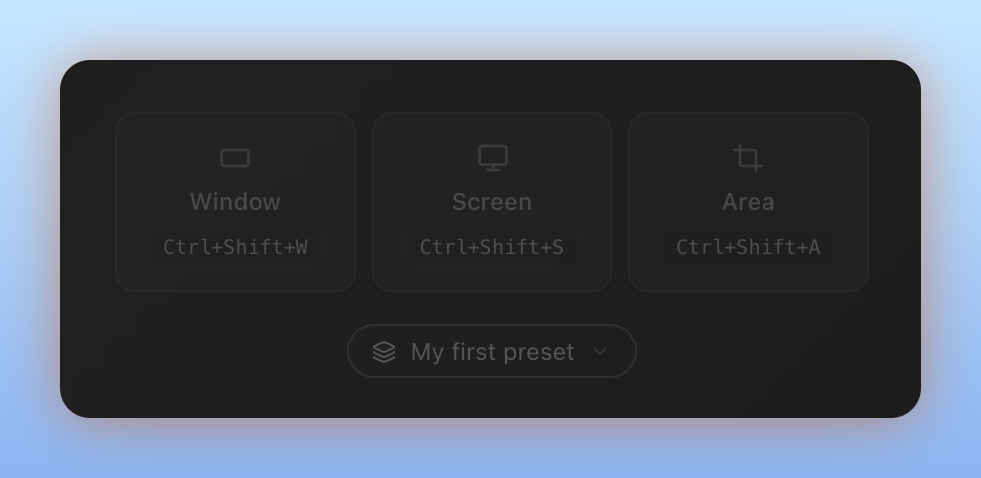
Core Shortcuts
| Shortcut | Action | Context |
|---|---|---|
Ctrl + Shift + W | Window | Capture one app window. |
Ctrl + Shift + S | Screen | Capture your full screen. |
Ctrl + Shift + A | Area | Drag and select a specific area. |
Alt + Shift + D | Change Default Preset | Quickly switch your default preset. |
Why use shortcuts?
Manual screenshot workflows usually involve:
- Opening a tool.
- Clicking ‘New’.
- Selecting an area.
- Opening an editor like Photoshop or Figma.
- Adding padding, shadows, and a background.
- Exporting and sharing.
With DoublShot, you press Ctrl + Shift + W, S, or A and your beautified screenshot is ready instantly based on your defaults.
Customizing your shortcuts
You can change any of these bindings in the Settings menu.
- Open the DoublShot tray icon.
- Select Hotkeys.
- Click on the action you want to rebind.
- Press your new key combination.
Note
Global shortcuts work even when other applications are focused, allowing for seamless captures during meetings or coding sessions.
What to learn next
Now that you know the shortcuts, the best next step is exploring how to use DoublShot for your specific needs:
Use Cases Explore common use cases See how DoublShot fits into different workflows from documentation to social sharing.