DoublShot helps you take a screenshot, make it look polished, and paste it wherever you need it without doing extra editing every time.
This guide covers the basic flow: open DoublShot, choose what to capture, set your default look, then paste your screenshot.
Open DoublShot
You can open DoublShot in two ways:
- Keyboard Shortcut: Press
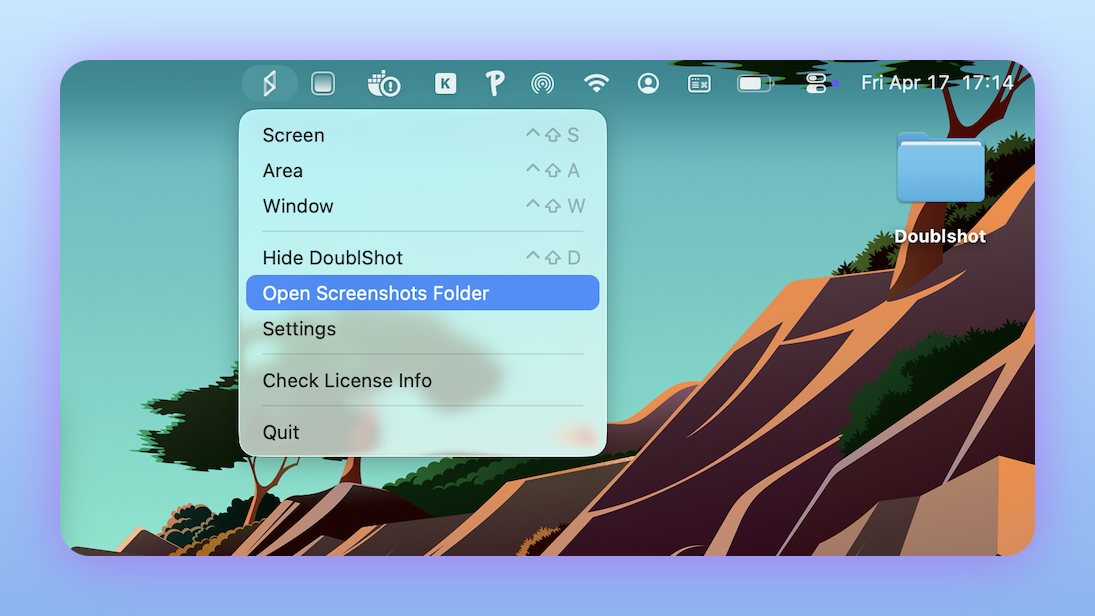
Ctrl + Shift + Don Windows and Mac. - Menu Bar: Use the DoublShot icon at the top of your screen.
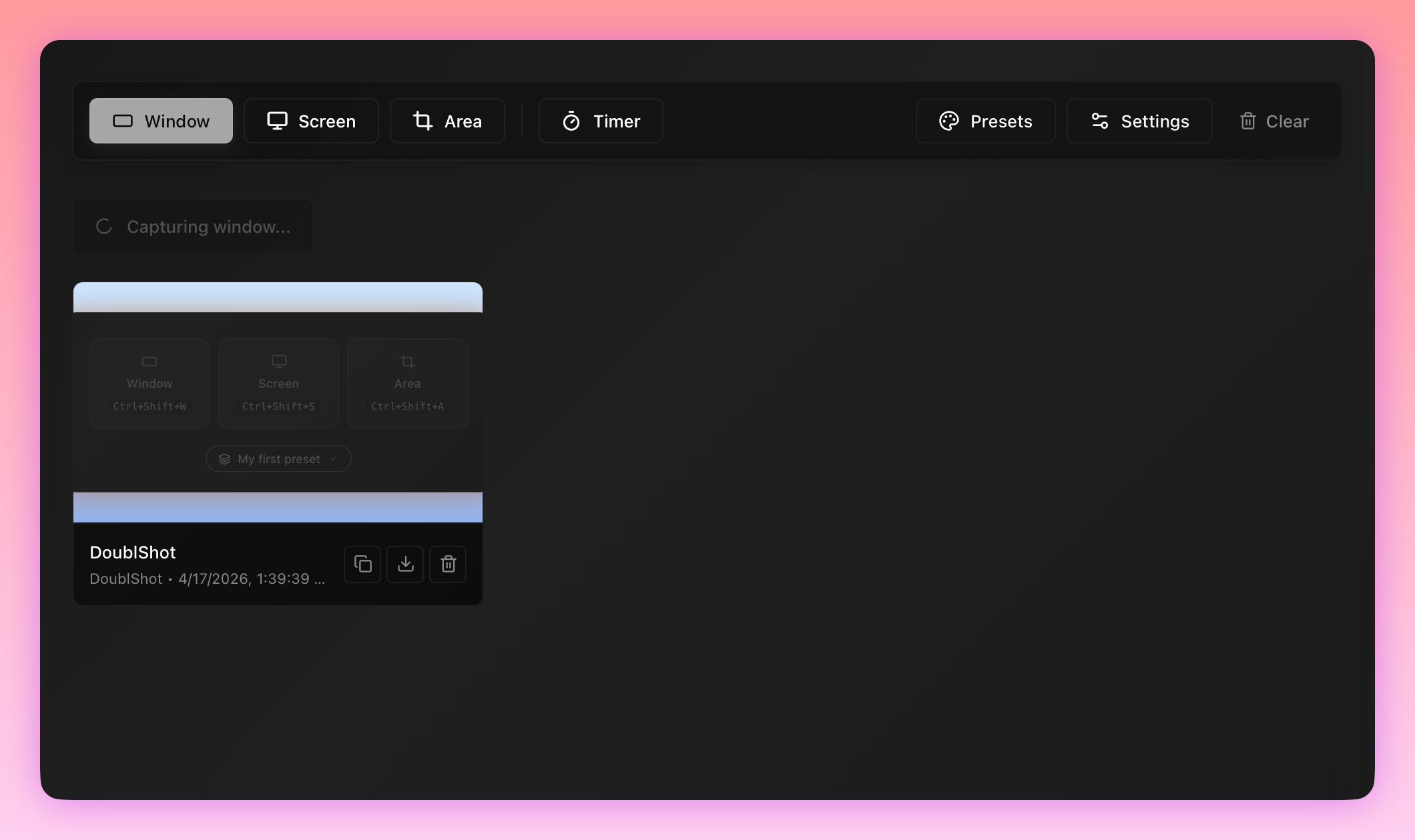
Opening the app gives you access to your capture options, presets, and recent screenshots.
Choose what to capture
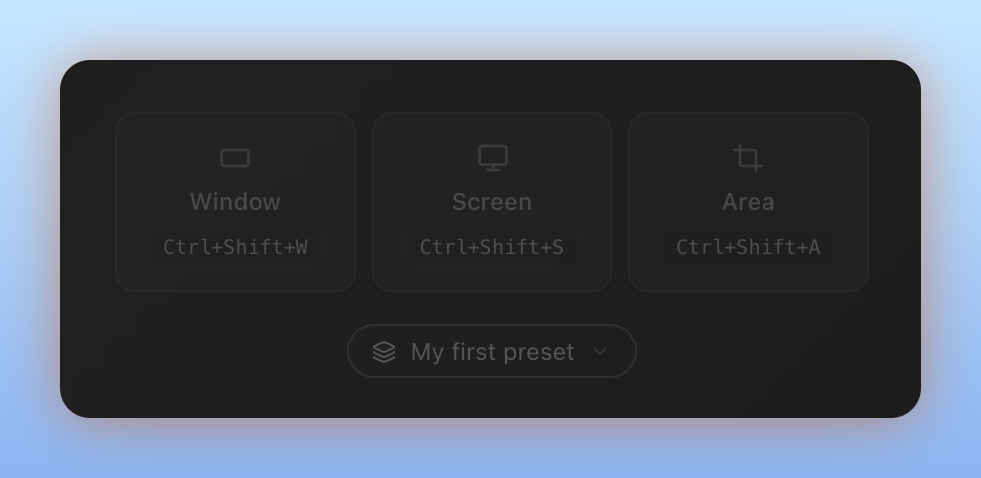
DoublShot has three main screenshot options:
| Capture type | Default shortcut | Use it when |
|---|---|---|
| Window | Ctrl + Shift + W | You want to capture one app window. |
| Screen | Ctrl + Shift + S | You want to capture your full screen. |
| Area | Ctrl + Shift + A | You want to drag and select a specific area. |
You can click the relevant button inside DoublShot, or use the shortcut whenever you need it. You do not need to be focused on the DoublShot app for shortcuts to work.
You can also customize these shortcuts. See the shortcuts guide for the full list and how to change them.
Set your default look
The best way to save time is to set up a preset before you start taking lots of screenshots.
- Open DoublShot.
- Go to Presets.
- Choose or create a preset.
- Customize how your screenshot should look.
- Save it.
Your next screenshots will use that preset automatically, so they are already styled when you capture them.
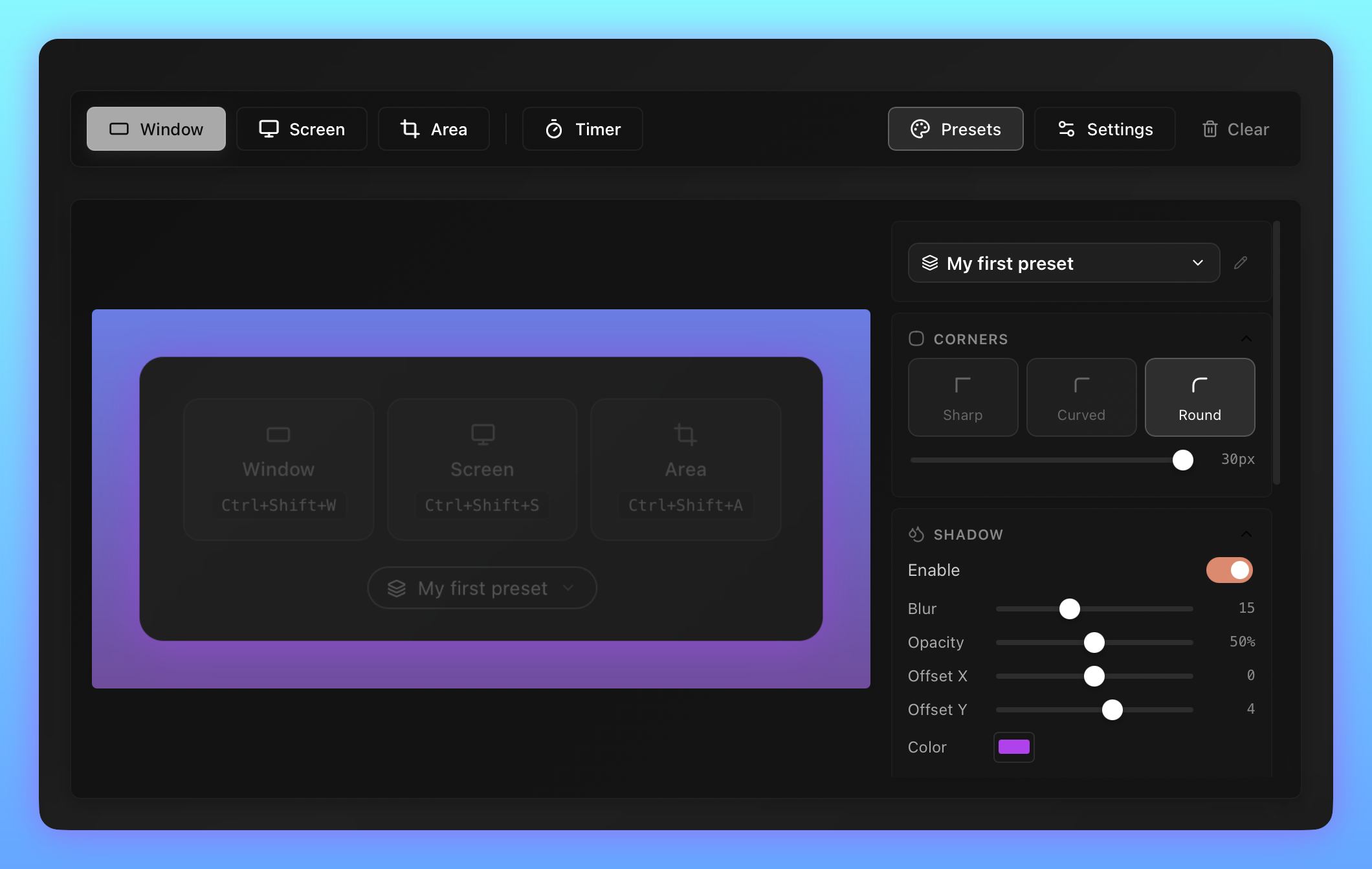
You can still adjust an individual screenshot after taking it. A preset is just the starting point.
Use different presets
You can create different presets for different use cases. For example:
- Clean product screenshots for documentation.
- Branded screenshots for social posts.
- Simple screenshots for support tickets.
- Focused crops for bug reports.
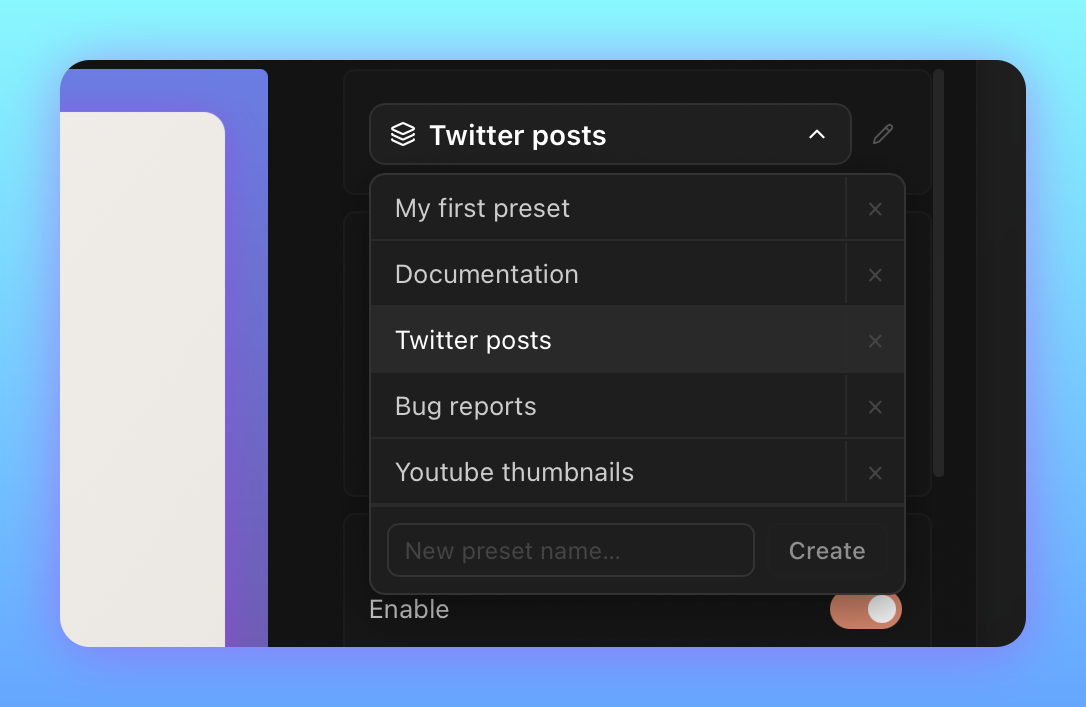
Start with one preset first. Once your basic workflow feels good, you can make more.
Paste or refine
After you take a screenshot, DoublShot automatically copies it to your clipboard.
That means you can paste it straight into Slack, Notion, Linear, Discord, email, or anywhere else you are working.
If you need to refine it first, open the screenshot in DoublShot. You can crop, annotate, adjust the style, then copy or download the final version.
Access your screenshots
Right-click the DoublShot icon in your menu bar and select Open screenshot folder to see all previous screenshots, organized by month.
What to learn next
Once you have taken your first screenshot, the most useful next step is learning the shortcuts:
Shortcuts Master your workflow with shortcuts Learn the essential keyboard shortcuts to capture and beautify screenshots instantly.